Log in to QScript for the first time
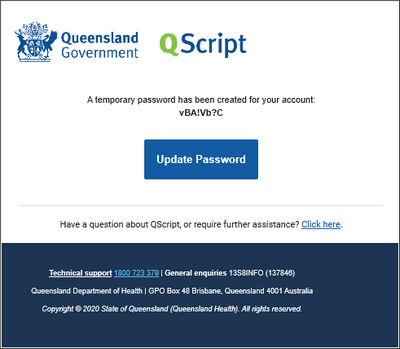
When your user account is created, you will receive an email with a temporary password. Follow the steps below to login and update your password.
-
In the email with the temporary password, click Update Password.
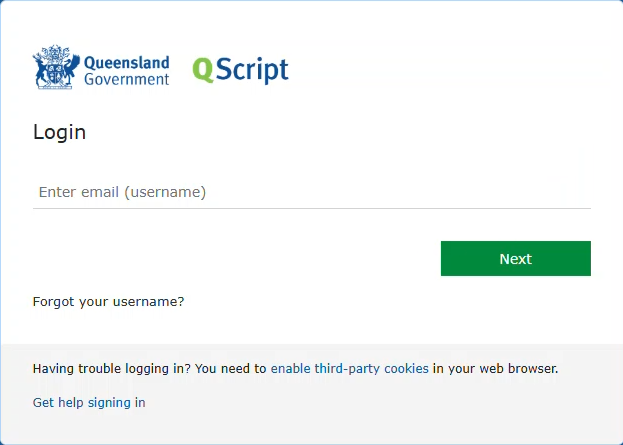
The Login screen displays.
-
Enter your email address (username), then click Next.
Your username is your email address.
-
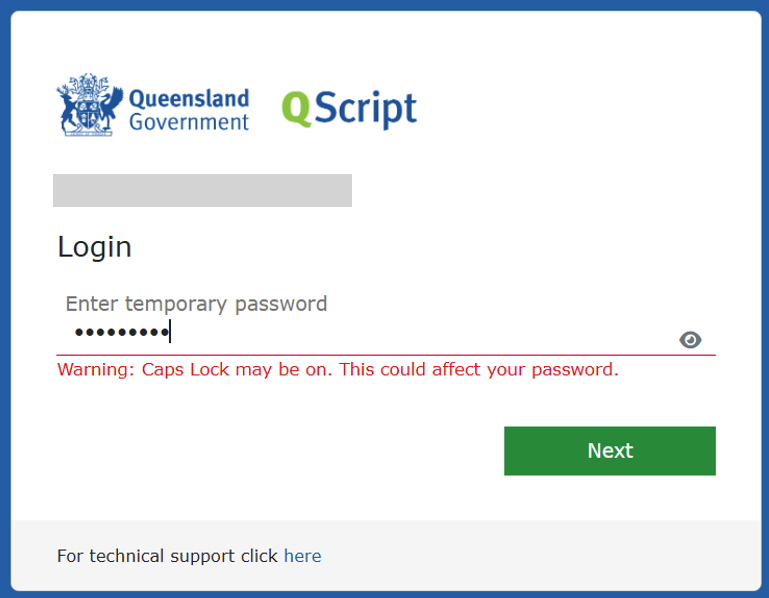
Enter the temporary password that was provided in the email, then click Next.
You can select the eye icon to show or hide what you have typed.
If Caps Lock is on, a warning is displayed below the password field.
-
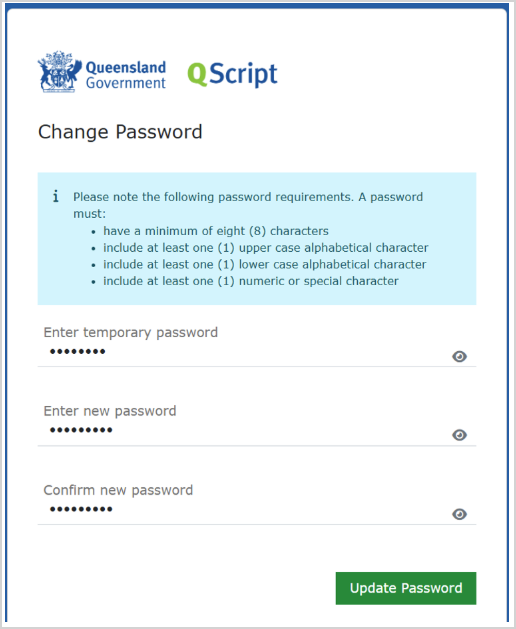
Enter the temporary password, enter and confirm the new password, then select Update Password.
- Follow the prompts to Set up Multi-factor Authentication.